See below for a quick overview of all sections available in TWM. Use the jump links to navigate to a specific group of sections.

Profile Sections
Banner Sections
Singular Content Sections
Multi-Item Content Sections

Carousel Sections
Custom Sections
Video Sections
Form Sections

General Notes

  • Image dimensions are in pixels and are required to upload an image correctly.
    • Dev team can crop or resize logos/photos to fit within the dimensions
  • Hero Banners, Resources, and Event sections can only be used once per page.
  • Recommend selecting Headline 3 for paragraph titles since it appears larger than paragraphs and smaller than Titles.
  • Background color selection is required on all sections
    • Dev team will automatically choose background colors if none is specified
    • In cases where a consumer's desktop loads incorrectly for sections with background images, the fallback appearance is the background color.

Profile Sections

TWM Section Description & Preview Requred/Optional Elements Section Capabilities
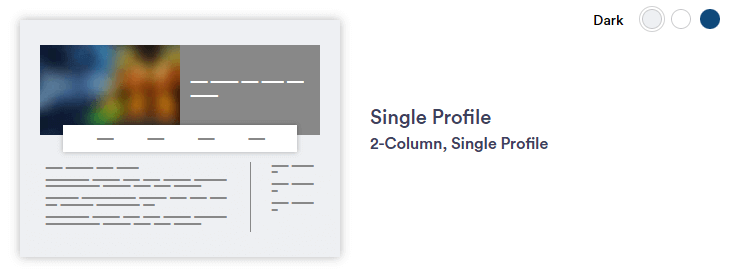
Single Profile
2-Column, Single Profile
Single Profile
Live Preview >
Required
  • Background color
  • Team Member(s)
  • Justification = automatic alignment of profiles
Optional
  • Introduction (title & paragraph)
    • Justification: Left
  • "Contact Me" CTA button
  • Bio / About Me
    • Headline(s)
  • Awards, Education, Licenses and Address
  • Contact Info (office, mobile, email, social media)
  • Disclaimer Text
Section Capabilities
  • Highlight an individual team member
  • Automatically displays bio paragraph on the page
  • Profile data pulled from MPM such as headshot, designations, and Job title
  • Need to manually enter bio, "contact me" button, and awards/education/licenses
  • Can add subtitles and images within the bios
Team 1
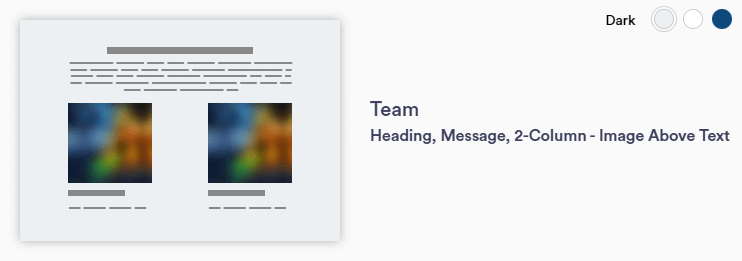
Heading, Message, 2-Column - Image Above Text
Team 1
Live Preview >
Required
  • Background color
  • Team Member(s)
  • Accordion menu
  • Justification = automatic alignment of profiles
Optional
  • Introduction (title & paragraph)
    • Justification: Left
  • "Contact Me" CTA button
  • Bio / About Me
    • Headline(s)
  • Accordion menu elements (Awards, Education, Address and Licenses)
  • Contact Info (office, mobile, email, social media)
  • Disclaimer Text
Section Capabilities
  • Supports multiple team members in a single column layout
  • Accordion menu bar cannot be hidden 
  • Profile data pulled from MPM such as headshot, designations, and Job title
  • Need to manually enter bio, "contact me" button, awards, education, and licenses
  • Address can be shown or hidden
  • Can add subtitles and images within the bios
Team 2
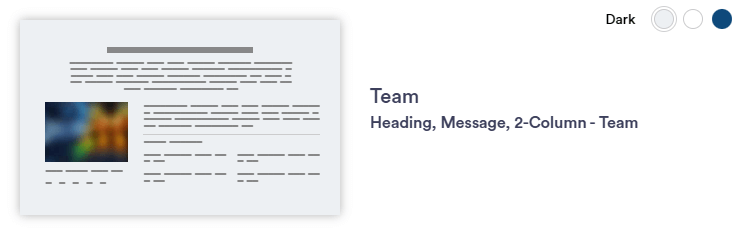
Heading, Message, 2-Column - Team
Team 2
Live Preview >
Required
  • Background color
  • Team Member(s)
  • Accordion menu
  • Justification = automatic alignment of profiles
Optional
  • Introduction (title & paragraph)
    • Justification: Left
  • "Contact Me" CTA button
  • Bio / About Me
    • Headline(s)
  • Accordion menu elements (Awards, Education, Address and Licenses)
  • Contact Info (office, mobile, email, social media)
  • Disclaimer Text
Section Capabilities
  • Supports multiple team members in a single column layout
  • Accordion menu bar cannot be hidden 
  • Profile data pulled from MPM such as headshot, designations, and Job title
  • Need to manually enter bio, "contact me" button, awards, education, and licenses
  • Address can be shown or hidden
  • Can add subtitles and images within the bios
Team 3
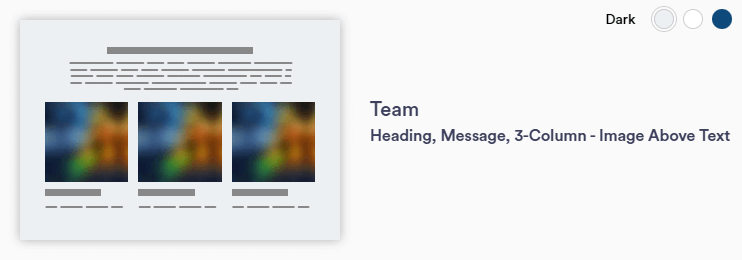
Heading, Message, 3-Column - Image Above Text
Team 3
Live Preview >
Required
  • Background color
  • Team Member(s)
  • Justification = automatic alignment of profiles
Optional
  • Introduction (title & paragraph)
    • Justification: Left
  • "Contact Me" CTA button
  • Bio / About Me
    • Headline(s)
  • Awards, Education, Licenses and Address
  • Contact Info (office, mobile, email, social media)
  • Disclaimer Text
Section Capabilities
  • Supports multiple team members within 3-columns
  • Bio is accessed via pop-up window
  • Profile data pulled from MPM such as headshot, designations, and Job title
  • Need to manually enter bio, "contact me" button, and awards/education/licenses
  • Address can be shown or hidden
  • Can add subtitles and images within the bios
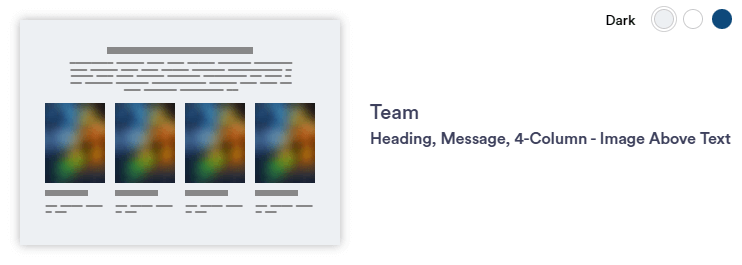
Team 4
Heading, Message, 4-Column - Image Above Text
Team 4
Live Preview >
Required
  • Background color
  • Team Member(s)
  • Justification = automatic alignment of profiles
Optional
  • Introduction (title & paragraph)
    • Justification: Left
  • "Contact Me" CTA button
  • Bio / About Me
    • Headline(s)
  • Awards, Education, Licenses and Address
  • Contact Info (office, mobile, email, social media)
  • Disclaimer Text
Section Capabilities
  • Supports multiple team members within 4-columns
  • Bio is accessed via pop-up window
  • Profile data pulled from MPM such as headshot, designations, and Job title
  • Need to manually enter bio, "contact me" button, and awards/education/licenses
  • Address can be shown or hidden
  • Can add subtitles and images within the bios

Banner Sections

TWM Section Description & Preview Requred/Optional Elements Section Capabilities
Banner Text 1
Heading, Message
Banner Text 1
Live Preview >
Required
  • Background color
  • Justification (Left, Center, Right)
  • Heading/Message
Optional
  • Background Image (minimum size = 1920 x 1080px)
  • CTA
  • Disclaimer Text 
Section Capabilities
  • Use to highlight phrases or slogans
  • Does not support paragraph-sized text, only the large font size
  • Use Banner Text 2 for quotation mark design
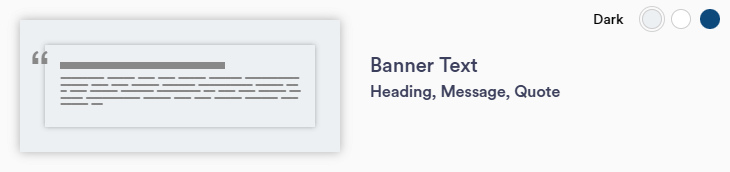
Banner Text 2
Heading, Message, Quote
Banner Text 2
Live Preview >
Required
  • Background color
  • Justification (Left, Center, Right)
  • Heading/Message
Optional
  • Background Image (minimum size = 1920 x 1080px)
  • Disclaimer Text 
  • Quote Name
Section Capabilities
  • Use to highlight testimonials, quotes, etc.
  • Quotation marks cannot be removed
  • Quotation mark color and Quote name color changes based on background color selected.
  • Does not support paragraph-sized text, only the large font size
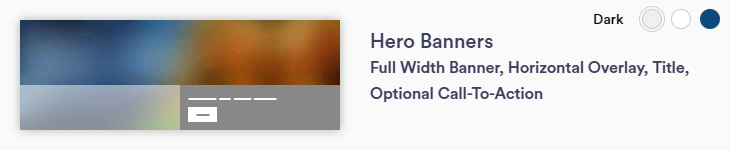
Hero Banner 1
Full Width Banner, Horizontal Overlay, Title, Optional CTA
Hero Banner 1
Live Preview >
Required
  • Justification = automatic
  • Background Image (minimum size = 1920 x 1080px)
Optional
  • CTA
  • Title
  • Subtitle
  • Social Media Icons
Section Capabilities
  • Create a rotating banner when multiple images are selected
    • Side Arrows, pause button, and bottom circle tabs will appear with this feature
Hero Banner 2
Full Width Banner, Text Left of Background
Hero Banner 2
Live Preview >
Required
  • Text Bar background color
  • Justification = automatic
  • Background Image (minimum size = 1920 x 1080px)
Optional
  • CTA
  • Title
  • Subtitle
  • Social Media Icons
Section Capabilities
  • Color title bar across bottom
  • Create a rotating banner when multiple images are selected
    • Side Arrows, pause button, and bottom circle tabs will appear with this feature
Hero Banner 3
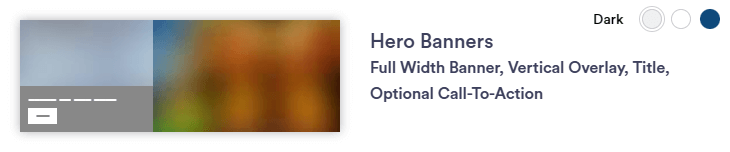
Full Width Banner, Vertical Overlay, Title, Optional CTA
Hero Banner 3
Live Preview >
Required
  • Text Bar background color
  • Justification (Left, Center, Right)
  • Background Image (minimum size = 1920 x 1080px)
Optional
  • Header Title
Section Capabilities
Hero Banner 4
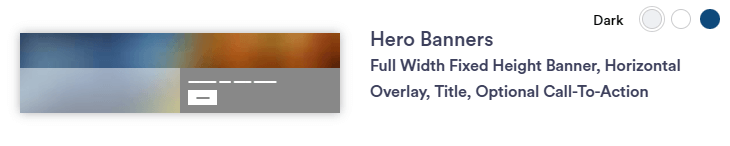
Full Width Fixed Height Banner, Horizontal Overlay, Title, Optional CTA
Hero Banner 4
Live Preview >
Required
  • Text Bar background color
  • Justification = automatic (Left, Center, Right)
  • Background Image (minimum size = 1920 x 1080px)
Optional
  • CTA
  • Title
  • Subtitle
  • Social Media Icons
Section Capabilities
  • Create a rotating banner when multiple images are selected
    • Side Arrows, pause button, and bottom circle tabs will appear with this feature
Hero Banner 5
Full Width Banner, Vertical Overlay, Title, Optional CTA
Hero Banner 5
Live Preview >
Required
  • Text Bar background color
  • Justification (Left, Center, Right)
  • Background Image (minimum size = 1920 x 1080px)
Optional
  • CTA
  • Title
  • Subtitle
  • Social Media Icons
Section Capabilities
  • Floating square background
  • Create a rotating banner when multiple images are selected
    • Side Arrows, pause button, and bottom circle tabs will appear with this feature
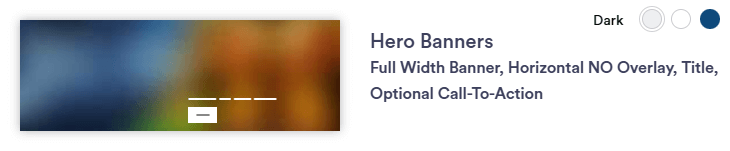
Hero Banner 6
Full Width Fixed Height Banner, Horizontal NO Overlay, Title, Optional CTA
Hero Banner 6
Live Preview >
Required
  • Justification = automatic
  • Background Image (minimum size = 1920 x 1080px)
Optional
  • CTA
  • Title
  • Subtitle
  • Social Media Icons
Section Capabilities
  • Same features as Hero Banner 1, but this banner is smaller in height on desktop & mobile screens
  • Create a rotating banner when multiple images are selected
    • Side Arrows, pause button, and bottom circle tabs will appear with this feature
Hero Banner 7
Full Width Banner, Vertical Overlay, Title, Optional CTA
Hero Banner 7
Live Preview >
Required
  • Text Bar background color
  • Justification = automatic
  • Background Image (minimum size = 1920 x 1080px)
Optional
  • CTA
  • Title
  • Subtitle
  • Social Media Icons
Section Capabilities
  • Same features as Hero Banner 2, but this banner is smaller in height on desktop & mobile screens.
  • Color title bar across bottom
  • Create a rotating banner when multiple images are selected
    • Side Arrows, pause button, and bottom circle tabs will appear with this feature
Hero Banner 8
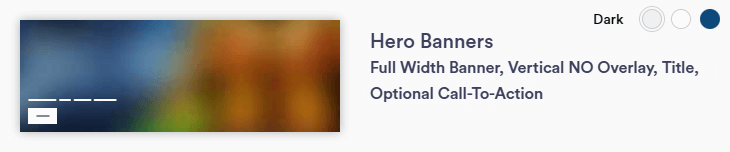
Full Width Fixed Height Banner, Verical NO Overlay, Title, Optional CTA
Hero Banner 8
Live Preview >
Required
  • Justification = automatic (Left, Center, Right)
  • Background Image (minimum size = 1920 x 1080px)
Optional
  • CTA
  • Title
  • Subtitle
  • Social Media Icons
Section Capabilities
  • Same features as Hero Banner 4, Same features as Hero Banner 4 but this banner does not have a text bar background
  • Create a rotating banner when multiple images are selected
    • Side Arrows, pause button, and bottom circle tabs will appear with this feature
Hero Banner 9
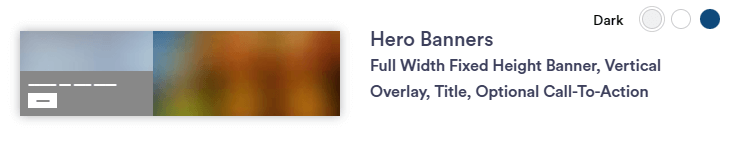
Full Width Fixed Height, Vertical Overlay, Title, Optional CTA
Hero Banner 9
Live Preview >
Required
  • Text Bar background color
  • Justification = (Left, Center, Right)
  • Background Image (minimum size = 1920 x 1080px)
Optional
  • CTA
  • Title
  • Subtitle
  • Social Media Icons
Section Capabilities
  • Same features as Hero Banner 5, but this banner is smaller in height on desktop & mobile screens.
  • Floating square background
  • Create a rotating banner when multiple images are selected
    • Side Arrows, pause button, and bottom circle tabs will appear with this feature

Singular Content Sections

TWM Section Description & Preview Requred/Optional Elements Section Capabilities
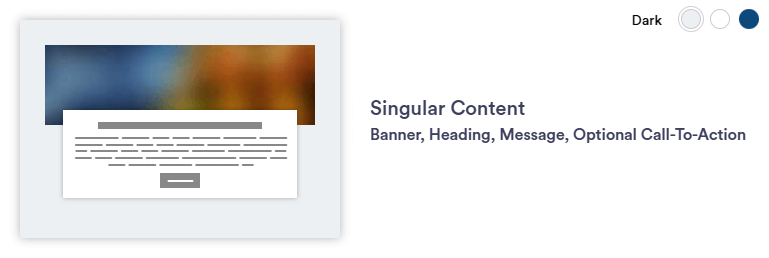
Singular Content 1
Banner, Heading, Message, Optional CTA
Singular Content 1
Live Preview >
Required
  • Background color
  • Justification (Left, Center, Right)
  • Image (minimum size = 1920 x 400px)
Optional
  • Title and/or paragraph(s)
  • Headline(s)
  • Disclaimer
Section Capabilities
  • Message section overlays the image with white box
  • Use with larger photos that are flexible in display
    • Depending on screen size, the image will display differently behind the box (responsive, not static)
  • Can add hyperlinks within paragraph text
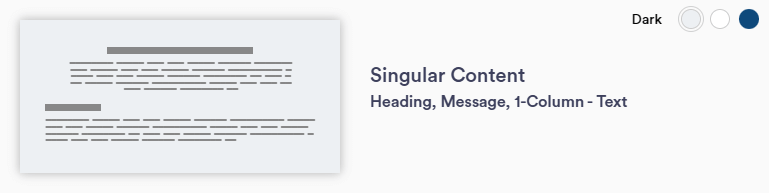
Singular Content 2
Heading, Message, 1-Column - Text
Banner Text 2
Live Preview >
Required
  • Background color
  • Justification (Left, Center, Right)
  • Top and bottom message
Optional
  • Title and/or paragraph(s)
  • Headline(s)
  • Disclaimer
Section Capabilities
  • Top paragraph's width stays smaller than the bottom paragraph
  • Can center-align top message area and keep bottom message left justified.
  • Use this section for text-heavy pages or as introduction to other sections on a page.
  • Can add hyperlinks within paragraph text
Singular Content 3
Heading, Message, Optional CTA

Singular Content 3
Live Preview >
Required
  • Background color
  • Text Justification (Left, Center, Right)
Optional
  • Title or paragraph
  • Headline(s)
  • CTA
  • Background image (any size)
  • Disclaimer
Section Capabilities
  • With a background image, the text box background is white
    • Text spans entire page
  • Use this section to highlight a paragraph on a page
  • Can add hyperlinks within paragraph text
Singular Content 4
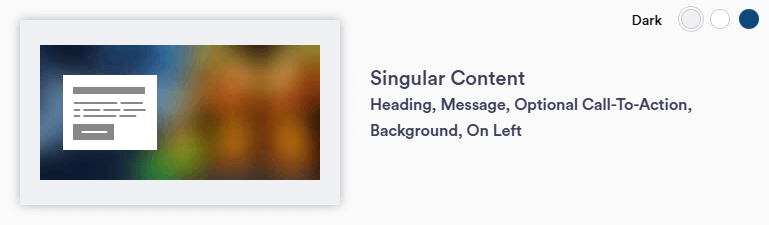
Heading, Message, Optional CTA, Background, On Left
Singular Content 4
Live Preview >
Required
  • Background color
  • Text Justification (Left, Center, Right)
Optional
  • Title or paragraph
  • Headline(s)
  • CTA
  • Background Image (minimum size = 1920 x 800px)
  • Disclaimer
Section Capabilities
  • With a background image, the text box background is white
    • Text stays in square to the left of the page
  • Background image with this section is highly encouraged
    • Choose a photo that is flexible in appearance
  • Content cannot be added to space next to text box
  • Can add hyperlinks within paragraph text
Singular Content 5
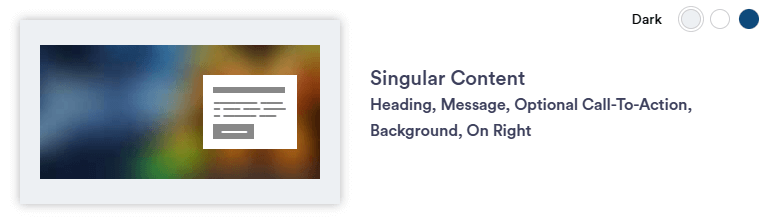
Heading, Message, Optional CTA, Background, On Right
Singular Content 5
Live Preview >
Required
  • Text Bar background color
  • Justification (Left, Center, Right)
Optional
  • Title or paragraph
  • Headline(s)
  • CTA
  • Background Image (minimum size = 1920 x 800px)
  • Disclaimer
Section Capabilities
  • With a background image, the text box background is white
    • Text stays in square to the right of the page
  • Background image with this section is highly encouraged
    • Choose a photo that is flexible in appearance
  • Content cannot be added to space next to text box
  • Can add hyperlinks within paragraph text
Singular Content 6
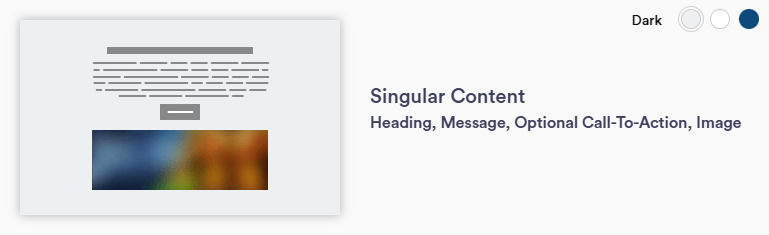
Heading, Message, Optional CTA, Image
Singular Content 6
Live Preview >
Required
  • Background color
  • Text Justification (Left, Center, Right)
  • Horizontal Image - 1110x735px
Optional
  • Title or paragraph
  • Headline(s)
  • CTA
  • Disclaimer
Section Capabilities
  • Image appears as wide as the paragraph text on the page
  • Use to: Introduce a team or highlight a photo.
  • The text box background is white on all background color choices.
  • Can add hyperlinks within paragraph text
Singular Content 7
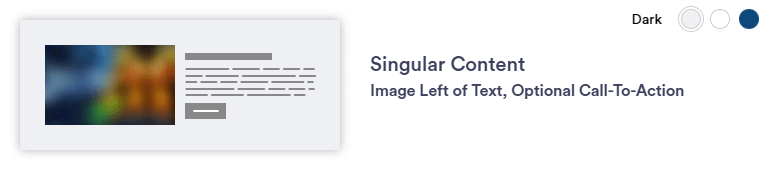
Image Left of Text, Optional CTA
Singular Content 7
Live Preview >
Required
  • Background color
  • Justification (Left, Center, Left)
  • Horizontal Image - 1110x735px
Optional
  • Title or paragraph
  • Headline(s)
  • CTA
  • Disclaimer
Section Capabilities
  • Commonly used section
  • Alternate on page between left and right section layout (Singular Content 9)
  • Can add hyperlinks within paragraph text
Singular Content 8
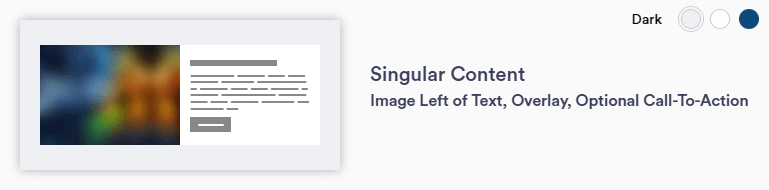
Image Left of Text, Overlay, Optional CTA
Singular Content 8
Live Preview >
Required
  • Background color
  • Justification (Left, Center, Right)
  • Horizontal Image - 1110x735px
Optional
  • Title or paragraph
  • Headline(s)
  • CTA
  • Disclaimer
Section Capabilities
  • Image appears wider than the white box/message area
  • White text box overlays larger background image to the left
  • Use with larger photos that are flexible in display
    • Depending on screen size, the image will display differently behind the box (responsive, not static)
  • Can add hyperlinks within paragraph text
Singular Content 9
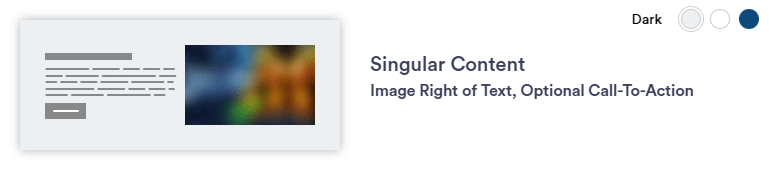
Image Right of Text, Optional CTA
Singular Content 9
Live Preview >
Required
  • Background color
  • Justification (Left, Center, Right)
  • Horizontal Image - 1110x735px
Optional
  • Title or paragraph
  • Headline(s)
  • CTA
  • Disclaimer
Section Capabilities
  • Commonly used section
  • Alternate on page between left and right section layout (Singular Content 7)
  • Can add hyperlinks within paragraph text
Singular Content 10
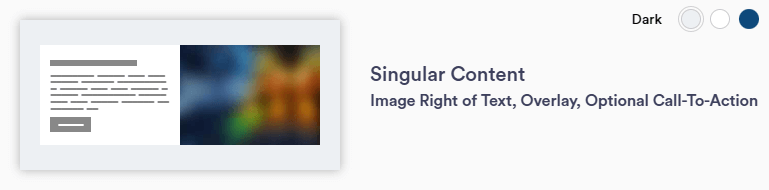
Image Right of Text, Overlay, Optional CTA
Singular Content 10
Live Preview >
Required
  • Background color
  • Justification (Left, Center, Right)
  • Horizontal Image - 1110x735px
Optional
  • Title or paragraph
  • Headline(s)
  • CTA
  • Disclaimer
Section Capabilities
  • Image appears wider than the white box/message area
  • White text box overlays larger background image to the right
  • Use with larger photos that are flexible in display
    • Depending on screen size, the image will display differently behind the box (responsive, not static)
Singular Content 11
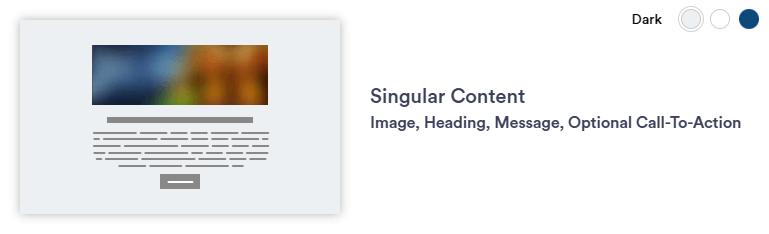
Image, Heading, Message, Optional CTA
Singular Content 11
Live Preview >
Required
  • Background color
  • Justification (Left, Center, Right)
  • Horizontal Image - 1110x735px
Optional
  • Title or paragraph
  • Headline(s)
  • CTA
  • Disclaimer
Section Capabilities
  • Image appears as wide as the paragraph text on the page
  • Use to: Introduce a team or highlight a photo.
  • The text box background is white on all background color choices.
  • Can add hyperlinks within paragraph text
Singular Content 12
Narrow Image Left of Text, Optional CTA
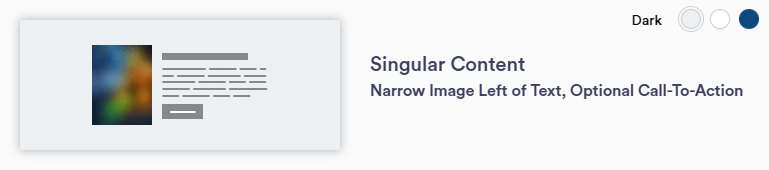
Singular Content 12
Live Preview >
Required
  • Background color
  • Justification (Left, Center, Right)
  • Vertical image - 483 x 600px
Optional
  • Title or paragraph
  • Headline(s)
  • CTA
  • Disclaimer
Section Capabilities
  • Commonly used section
  • Alternate on page between left and right section layout (Singular Content 14)
  • Can add hyperlinks within paragraph text
Singular Content 13
Narrow Image Left of Text, Overlay, Optional CTA
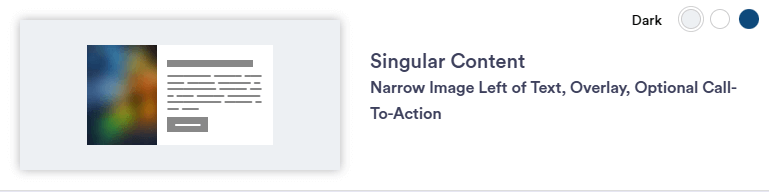
Singular Content 13
Live Preview >
Required
  • Background color
  • Justification (Left, Center, Right)
  • Vertical image - 483 x 600px
Optional
  • Title or paragraph
  • Headline(s)
  • CTA
  • Disclaimer
Section Capabilities
  • Image appears wider than the white box/message area
  • White text box overlays larger background image to the left
  • Use with larger photos that are flexible in display
    • Depending on screen size, the image will display differently behind the box (responsive, not static)
Singular Content 14
Narrow Image Right of Text, Optional CTA
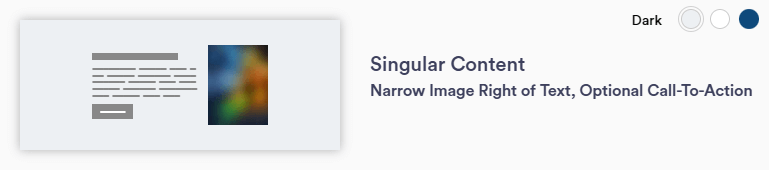
Singular Content 14
Live Preview >
Required
  • Background color
  • Justification (Left, Center, Right)
  • Vertical image - 483 x 600px
Optional
  • Title or paragraph
  • Headline(s)
  • CTA
  • Disclaimer
Section Capabilities
  • Commonly used section
  • Alternate on page between left and right section layout (Singular Content 12)
  • Can add hyperlinks within paragraph text
Singular Content 15
Narrow Image Right of Text, Overlay, Optional CTA
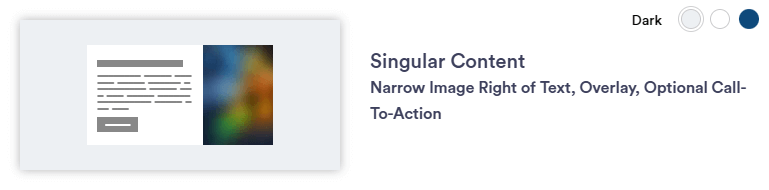
Singular Content 15
Live Preview >
Required
  • Background color
  • Justification (Left, Center, Right)
  • Vertical image - 483 x 600px
Optional
  • Title or paragraph
  • Headline(s)
  • CTA
  • Disclaimer
Section Capabilities
  • Image appears wider than the white box/message area
  • White text box overlays larger background image to the right
  • Use with larger photos that are flexible in display
    • Depending on screen size, the image will display differently behind the box (responsive, not static)

Multi-Item Content Sections

TWM Section Description & Preview Requred/Optional Elements Section Capabilities
Multi-Item Content 1
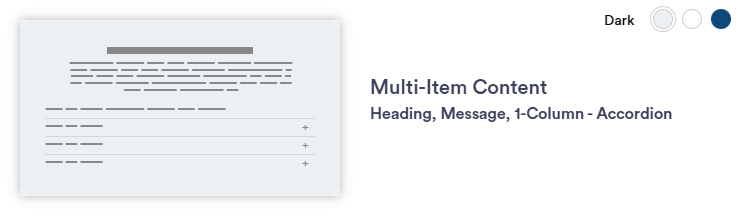
Heading, Message 1-Column - Accordion
Multi-Item Content 1
Live Preview >
Required
  • Background color
  • Justification (Left, Center, Right)
  • Accordion menu(s)
    • Title and paragraph
Optional
  • Intro title and/or paragraph
  • Headline(s)
  • Disclaimer
Section Capabilities
  • Good to use for FAQs or commonly addressed topics
  • Maximum of nine accordion menus per section
Multi-Item Content 2
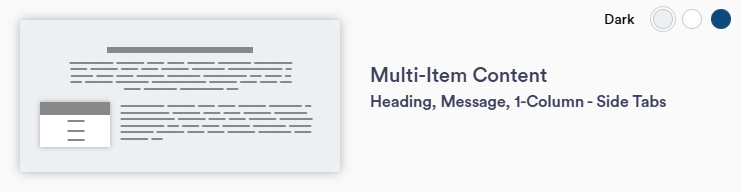
Heading, Message, 1-Column - Side Tabs
Multi-Item Content 2
Live Preview >
Required
  • Background color
  • Justification (Left, Center, Right)
  • Accordion menu(s)
    • Title and paragraph
Optional
  • Intro title and/or paragraph
  • Headline(s)
  • Disclaimer
Section Capabilities
  • Tabs have a fixed placement as a left column
    • Only text is affected by justification choices
  • Use short/concise titles for tabs
  • Arrange tabs in a logical order
  • Good to use for topic summaries or brief overviews
  • Maximum of nine tab menus per section
Multi-Item Content 3
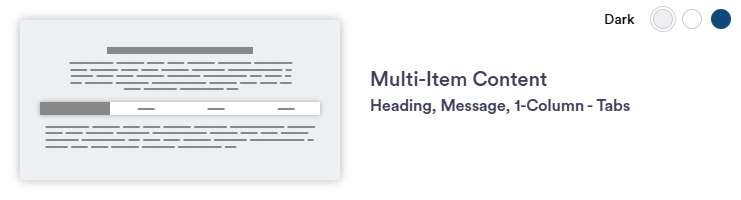
Heading, Message, 1-Column - Tabs
Multi-Item Content 3
Live Preview >
Required
  • Background color
  • Justification (Left, Center, Right)
  • Tab title and paragraph
Optional
  • Intro title and/or paragraph
  • Multi-Item Paragraphs
  • Disclaimer
Section Capabilities
  • Tabs appear across the page
    • Only text is affected by justification choices
  • Use short/concise titles for tabs
  • Arrange tabs in a logical order
  • Good to use for topic summaries or brief overviews
  • Maximum of nine tab menus per section*
    • *Dependent on number of characters used in tab titles
Multi-Item Content 4
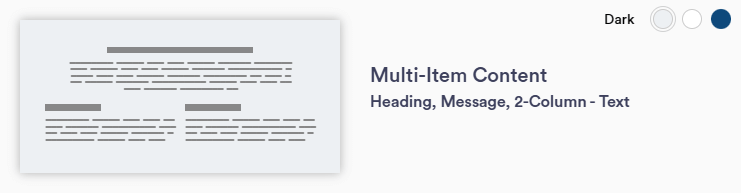
Heading, Message 2-Column - Text
Multi-Item Content 4
Live Preview >
Required
  • Background color
  • Justification (Left, Center. Right)
  • Multi-Item Paragraphs (2 total)
Optional
  • Intro title and/or paragraph
  • Multi-Item titles
  • Disclaimer
Section Capabilities
  • Each paragraph is a separate entity from one another
  • Can only include two multi-item paragraphs per section
  • Alternative layout idea:
    • Intro title and two multi-item paragraphs (omit intro paragraph and multi-item titles)
Multi-Item Content 5
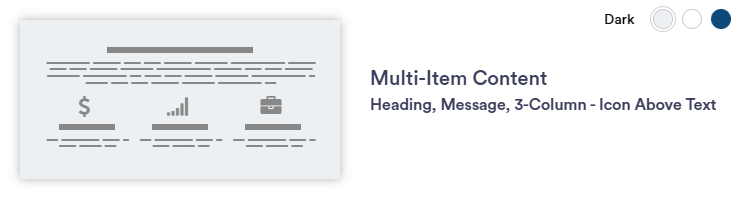
Heading, Message, 3-Column - Icon Above Text
Multi-Item Content 5
Live Preview >
Required
  • Background color
  • Justification (Left)
  • Column tiles
Optional
  • Icons - from NM library
  • Intro title and/or paragraph
  • Multi-Item Paragraphs
  • CTA(s) - button or text
  • Disclaimer
Section Capabilities
  • Select icons from NM brand-approved icon library
  • Recommend adding content in each column as layout suggests
    • can support 1 or 2 entities, but they are positioned following the 3-col layout
Multi-Item Content 6
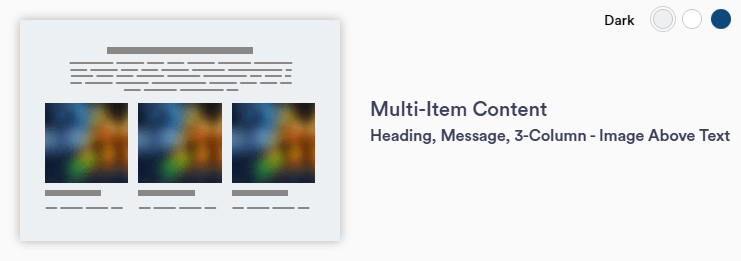
Heading, Message, 3-Column - Image Above Text
Multi-Item Content 6
Live Preview >
Required
  • Background color
  • Justification (Left)
  • Horizontal image - 350 x 232px
Optional
  • Intro title and/or paragraph
  • Disclaimer
Section Capabilities
  • Each paragraph is a separate entity from one another
  • Highly encourage use of image
  • Content idea: blog/newsletters
  • White box surrounds text; same width as image (appears on dark and primary backgrounds)
  • Recommend adding content in each column as layout suggests
    • can support 1 or 2 entities, but they are positioned following the 3-col layout
Multi-Item Content 7
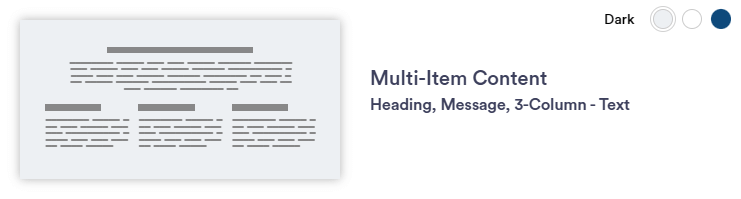
Heading, Message, 3-Column - Text
Multi-Item Content 7
Live Preview >
Required
  • Background color
  • Justification (Left)
  • Multi-Item titles and/or paragraphs (3 total)
Optional
  • Intro title and/or paragraph
  • Disclaimer
Section Capabilities
  • Each paragraph is a separate entity from one another
  • Recommend adding content in each column as layout suggests
    • can support 1 or 2 entities, but they are positioned following the 3-col layout
  • Alternative layout idea:
    • Intro title and three multi-item paragraphs (omit intro paragraph and multi-item titles)

Carousel Sections

TWM Section Description & Preview Requred/Optional Elements Section Capabilities
Carousel 1
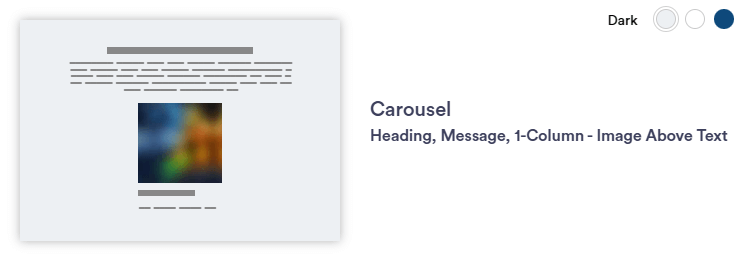
Heading, Message, 1-Column - Image Above Text
Carousel 1
Live Preview >
Required
  • Background color
  • Justification (Left, Center, Right)
  • Horizontal image - 727 x 520px
Optional
  • Image caption(s)
  • CTA
  • Disclaimer
Section Capabilities
  • Carousel element stays centered below message area (static)
  • Button color changes with background color
  • Can add hyperlinks within paragraph text
  • Recommended limit of 12 photos to increase page loading speed
Carousel 2
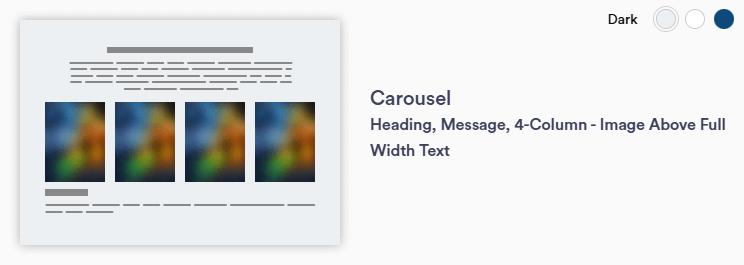
Heading, Message, 4-Column - Image Above Full Width Text
Carousel 2
Live Preview >
Required
  • Background color
  • Justification (Left, Center, Right)
    • Affects entire section
  • Horizontal image - 727 x 520px
Optional
  • Intro title and/or paragraph
  • Carousel titles and/or paragraphs
  • Accordion menu(s)
  • CTA(s) - button or text
    • Add per carousel paragraph
  • Disclaimer
Section Capabilities
  • Select a carousel image to display message/accordion content
  • Can display one entity without compromising section layout
    • Carousel function turns off with less than 4 entities (arrows disappear and image becomes centered - Similar to Multi-Item Content 3)
  • Recommended limit of 12 photos to increase page loading speed
  • Accordion menu is separate from carousel entity
    • Can be re-used on same section / other carousels
    • Up to four accordions can be displayed per entity
  • Can add hyperlinks within paragraph text
Carousel 3
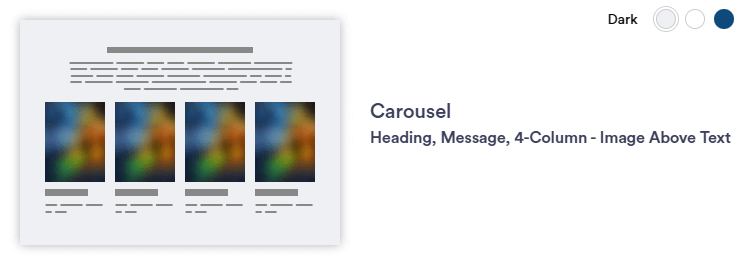
Heading, Message, 4-Column - Image Above Text
Carousel 3
Live Preview >
Required
  • Background color
  • Justification (Left, Center, Right)
    • Affects entire section
  • Horizontal image - 727 x 520px
Optional
  • Intro title and/or paragraph
  • Carousel titles and/or paragraphs
  • Accordion menu(s)
  • CTA(s) - button or text
    • Add per carousel paragraph
  • Disclaimer
Section Capabilities
  • Carousel message and accordion items automatically are visible under image
  • Can display one entity without compromising section layout
    • Carousel function turns off with less than 4 entities (arrows disappear and image becomes centered - Similar to Multi-Item Content 3)
  • Recommended limit of 12 photos to increase page loading speed
  • Accordion menu is separate from carousel entity
    • Can be re-used on same section / other carousels
    • Up to four accordions can be displayed per carousel
  • Can add hyperlinks within paragraph text
Carousel 4
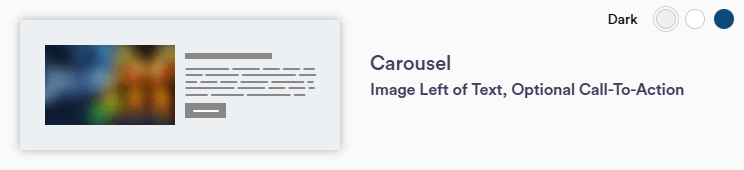
Image Left of Text, Optional CTA
Carousel 4
Live Preview >
Required
  • Background color
  • Justification (Left)
  • Horizontal image - 727 x 520px
Optional
  • Image caption(s)
  • Accordion menu(s)
  • CTA
  • Disclaimer
Section Capabilities
  • Similar to Carousel 1 section
    • Images to the left of text instead of centered below
  • Recommended limit of 12 photos to increase page loading speed
    • Can add more photos if desired
  • Accordion menu is separate from carousel entity
    • Can be re-used on same section / throughout site
    • Up to four accordions can be displayed per section
Carousel 5
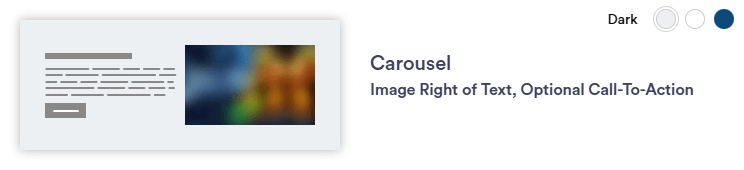
Image Right of Text, Optional CTA
Carousel 5
Live Preview >
Required
  • Background color
  • Justification (Left)
  • Horizontal image - 727 x 520px
Optional
  • Image caption(s)
  • Accordion menu(s)
  • CTA
  • Disclaimer
Section Capabilities
  • Same as Carousel 4 section
    • Images to the right of text
  • Recommended limit of 12 photos to increase page loading speed
    • Can add more photos if desired
  • Accordion menu is separate from carousel entity
    • Can be re-used on same section / throughout site
    • Up to four accordions can be displayed per section

Custom Sections

TWM Section Description & Preview Requred/Optional Elements Section Capabilities
Counting Numbers 1
Data Points Right of Text
Counting Numbers 1
Live Preview >
Required
  • Background color
  • Justification (Left)
  • Intro Title and paragraph
  • Counting Numbers tile
    • Title and number
Optional
  • Background Image (minimum size = 1110 x 735px)
  • Counting Numbers tile(s)
    • Message and/or icon
  • Headline
  • CTA
  • Disclaimer
Section Capabilities
  • Background image appears behind counting numbers column
    • Choose a photo that is flexible in appearance
  • Only numbers can be used in the counting number function
    • no special characters or letters
  • Up to four counting number tiles can be added
Counting Numbers 2
Heading, Message, 3-Column - Data Points
Counting Numbers 2
Live Preview >
Required
  • Background color
  • Justification (Left, Center, Right)
    • Affects entire section
  • Intro Title and paragraph
  • Counting Numbers tile
    • Title and number
Optional
  • Background image - Any size
  • Counting Numbers tile(s)
    • Message and/or icon
  • Headline
  • CTA
  • Disclaimer
Section Capabilities
  • Background image appears behind entire section
    • Choose a photo that is flexible in appearance
  • Only numbers can be used in the counting number function
    • no special characters or letters
  • Up to three counting number tiles can be added
  • Can add hyperlinks within paragraph text
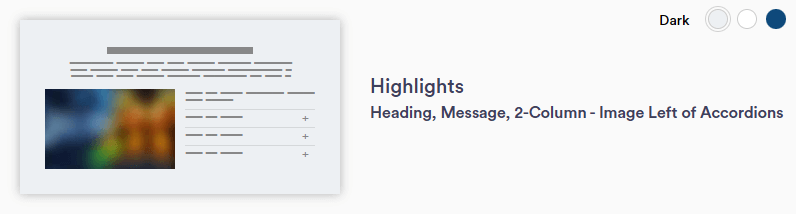
Highlights 1
Heading, Message, 2-Column - Image Left of Accordions
Highlights 1
Live Preview >
Required
  • Background color
  • Justification (Left, Center, Right)
  • Highlight tiles
    • Title and message
    • minimum needed = 3
Optional
  • CTA - button or text
  • Disclaimer
Section Capabilities
  • Similar to Carousel 4 section
    • Single image instead of multiple images to the left
  • When an accordion is expanded, the image alternates to the pre-selected image
  • Up to four accordions can be displayed per section
  • Accordion menus are separate from one another
    • Can have different CTAs per menu
    • Can be re-used on other highlights sections
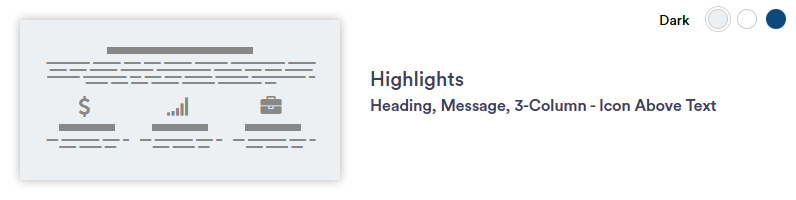
Highlights 2
Heading, Message, 3-Column - Icon Above Text
Highlights 2
Live Preview >
Required
  • Background color
  • Justification (Left, Center, Right)
  • Highlight tiles
    • Title and message
    • minimum needed = 3
Optional
  • Intro title and/or paragraph
  • Icons
  • CTA(s) - button or text
  • Disclaimer
Section Capabilities
  • Highly recommend use of Icons
    • Select icons from the NM library
  • Suggested amount of tiles: 6
  • Content idea: blog/newsletters
  • Highlight flips when mouse hovers over square
  • Highlight tiles are separate from one another
    • Can have different CTAs per tile
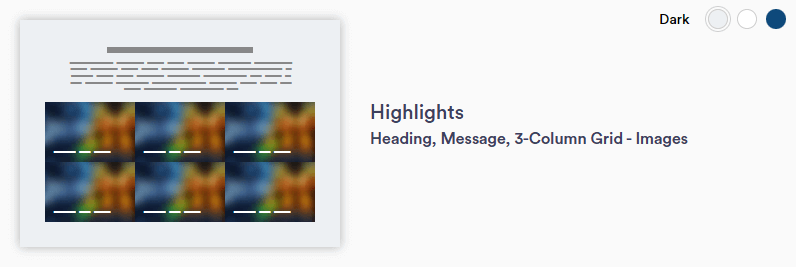
Highlights 3
Heading, Message, 3-Column Grid - Images
Highlights 3
Live Preview >
Required
  • Background color
  • Justification (Left, Center, Right)
  • Highlight tiles
    • Title and message
    • minimum needed = 3
  • Horizontal image - 727 x 520px
Optional
  • Intro title and/or paragraph
  • CTA(s) - button or text
  • Disclaimer
Section Capabilities
  • Highly recommend using various images
    • Suggested amount of tiles: 6
      • Can add more if desired
  • Content idea: blog/newsletters
  • Highlight flips when mouse hovers over square
  • Highlight tile color change with background color selection
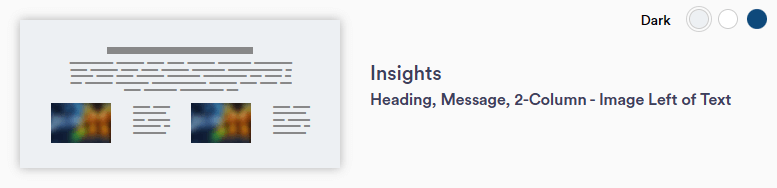
Insights 1
Heading, Message, 2-Column - Image Left of Text
Insights 1
Live Preview >
Required
  • Background color
  • Justification (Left, Center, Right)
  • Horizontal image - 727 x 520px
  • Insights tile
    • Title and paragraph
Optional
  • Intro title and/or paragraph
  • CTA(s) - button or text
  • Disclaimer
Section Capabilities
  • Same section used under the "Services" page
  • Content idea: blog/newsletters
  • White box surrounds text and image (box is visible on dark and primary backgrounds)
  • Same content tiles from Insights 2 and the services page can be used
  • Up to 20 tiles can be selected and displayed in a 2-column layout
    • Recommend to use an even number of insight tiles
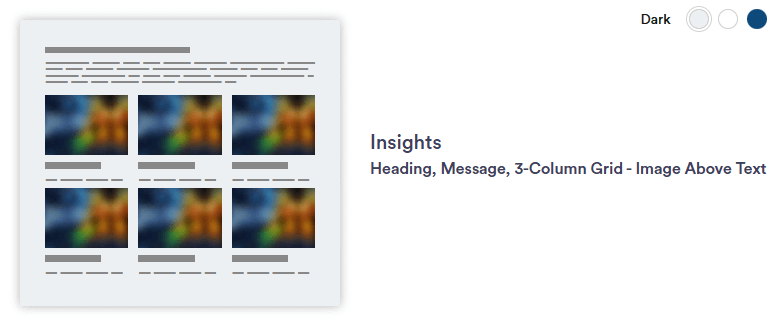
Insights 2
Heading, Message, 3-Column Grid - Image Above Text
Insights 2
Live Preview >
Required
  • Background color
  • Justification (Left, Center, Right)
  • Horizontal image - 727 x 520px
  • Insights tile
    • Title and paragraph
Optional
  • Intro title and/or paragraph
  • CTA(s) - button or text
  • Disclaimer
Section Capabilities
  • Similar to Multi-Item content 6 section
  • Content idea: blog/newsletters
  • White box appears behind text; same width as image (box is visible on dark and primary backgrounds)
  • Same content tiles from Insights 1  and the services page can be used
  • Up to 20 tiles can be selected and displayed in a 2-column layout
    • Recommend to use an even number of insight tiles
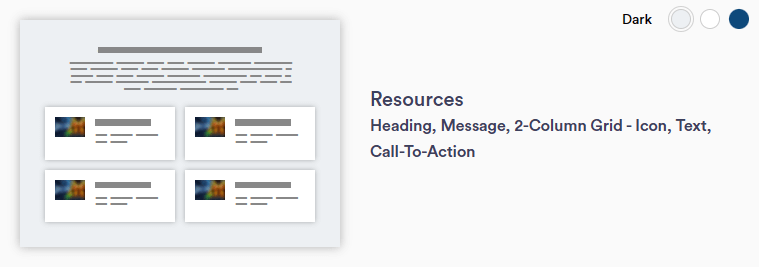
Resources 1
Heading, Message, 2-Column Grid - Icon, CTA
Resources 1
Live Preview >
Required
  • Background color
  • Justification (Left, Center, Right)
    • Affects entire section
  • Resource title (at least two)
  • Icons
Optional
  • Intro title and/or paragraph
  • Resource paragraph
  • Accordion menu(s)
  • CTA(s) - button or text
    • Add per resource
  • Disclaimer
Section Capabilities
  • Use to display other links or documents
  • Content idea: blog/newsletters
  • Select icons from the NM library
  • Can display multiple resource entities
    • Recommended: use an even number of resources for best display in a 2-col layout
  • Can only use this section once per page
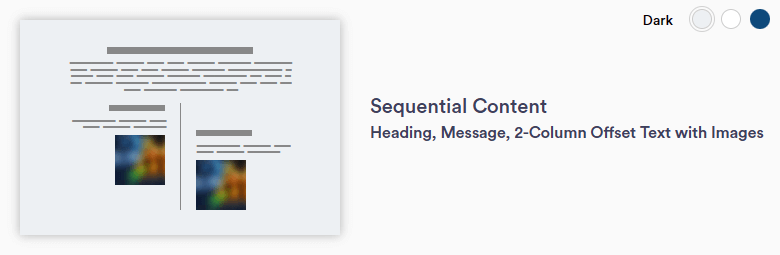
Sequential Content 1
Heading, Message, 2-Column Offset Text with Images
Sequential Content 1
Live Preview >
Required
  • Background color
  • Justification (automatic)
  • Sequential content tiles**
    • Requires two tiles 
    • Main title required with at least one optional element 
Optional
  • Intro title and/or paragraph
    • Headline(s)
  • Tile subtitle(s)
  • Tile paragraph
  • Tile image - 420 x 278px
  • Disclaimer
Section Capabilities
  • Unique timeline-layout section
  • Idea: use subtitle area to mark the "steps" along the timeline
    • Example: Step 1, Step 2, etc.
  • **Layout combinations for the tiles:
    • Title and paragraph
    • Title and image
    • Subtitle, title, and paragraph
    • Subtitle, title, and image
    • Subtitle, title, paragraph, and image (all tile features)
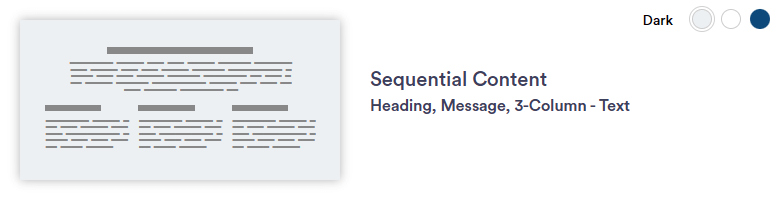
Sequential Content 2
Heading, Message, 2-Column Offset Text with Images
Sequential Content 1
Live Preview >
Required
  • Background color
  • Justification (center)
  • Sequential content tiles**
    • Requires three tiles 
    • Main title required with at least one optional element 
Optional
  • Intro title and/or paragraph
    • Headline(s)
  • Tile subtitle(s)
  • Tile paragraph
  • Disclaimer
Section Capabilities
  • Layout similar to Multi-Item section 7 with 3-column text format
  • Idea: use subtitle area to mark the "steps" along the timeline
    • Example: Step 1, Step 2, etc.
  • **Layout combinations for the tiles:
    • Title and paragraph
    • Subtitle, title, and paragraph
    • Subtitle, title, paragraph (all tile features)

Video Sections

TWM Section Description & Preview Requred/Optional Elements Section Capabilities
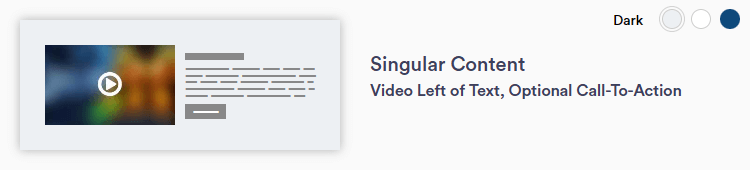
Video 1
Video Left of Text, Optional CTA
Video 1
Live Preview >
Required
  • Background color
  • Justification (Left, Center, Right)
  • NM YouTube video link
Optional
  • CTA
  • Title or paragraph
  • Headline(s)
  • Disclaimer
Section Capabilities
  • Same layout as Singular Content 7
  • Idea: summarize a video in the message area to encourage the visitor to watch it
  • Can add hyperlinks within paragraph text
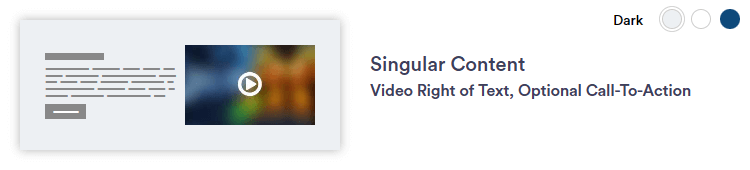
Video 2
Video Right of Text, Optional CTA
Video 2
Live Preview >
Required
  • Background color
  • Justification (Left, Center, Right)
  • NM YouTube video link
Optional
  • CTA
  • Title or paragraph
  • Headline(s)
  • Disclaimer
Section Capabilities
  • Same layout as Singular Content 9
  • Idea: summarize a video in the message area to encourage the visitor to watch it
  • Can add hyperlinks within paragraph text
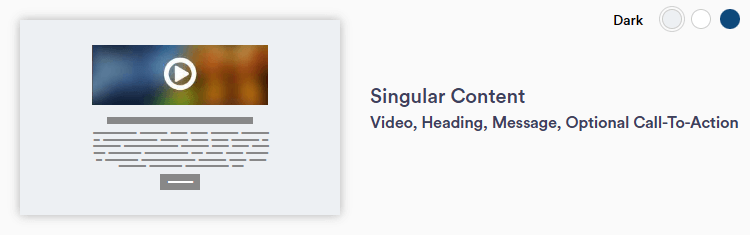
Video 3
Video Heading, Message, Optional CTA
Video 3
Live Preview >
Required
  • Background color
  • Text Justification (Left, Center, Right)
  • NM YouTube video link
Optional
  • Title or paragraph
  • Headline(s)
  • CTA
  • Disclaimer
Section Capabilities
  • Similar to Carousel 4 section
    • Same layout as Singular Content 11
    • Video center-aligns with white text box
    • Use to highlight a video
    • The text box background is white on all background color choices.
    • Can add hyperlinks within paragraph text
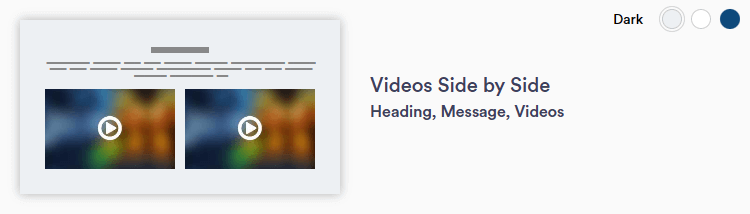
Video 4
Heading, Message, Side by Side Videos
Video 4
Live Preview >
Required
  • Background color
  • Text Justification (Left, Center, Right)
  • NM YouTube video links (at least two)
Optional
  • Message area above and below videos (title and paragraph)
Section Capabilities
  • Videos display in a 2-column layout
    • Can add multiple videos (up to four)
  • Add a short description or summary below each video
  • Can add hyperlinks within paragraph text

Form Sections

TWM Section Description & Preview Requred/Optional Elements Section Capabilities
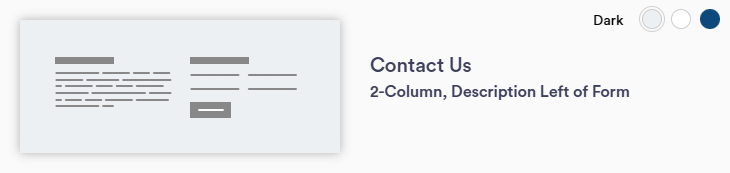
Contact 1
2-Column, Description Left of Form
Contact 1
Live Preview >
Required
  • Background color
  • Text Justification (left)
  • Form (on the right)
Optional
  • Title or paragraph
  • Social Media icons
  • Disclaimer
Section Capabilities
  • Encourage consumer to fill out form with description
  • Good practice: place section at end of page (before the footer)
  • Icon/button color changes with background color
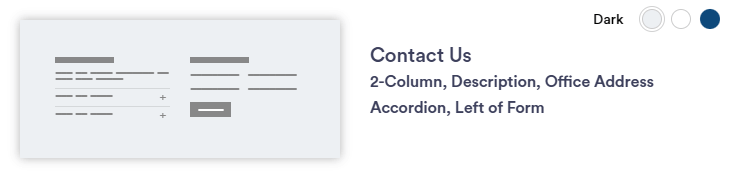
Contact 2
2-Column, Description, Office Address Accordion, Left of Form
Contact 2
Live Preview >
Required
  • Background color
  • Text Justification (left)
  • Form (on the left)
  • Accordion Menu title(s)
Optional
  • Title or paragraph
  • Social Media icons
  • Contact Info (address, phone, fax, and email)
  • Background image
  • Disclaimer
Section Capabilities
  • Encourage consumer to fill out form with description
  • Good practice: place section at end of page (before the footer)
  • Accordion menu to the right of section layout
    • Social media icons in second accordion menu
  • Data pulled from MPM
  • Icon/button color changes with background color
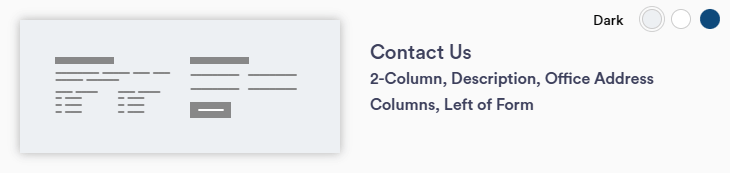
Contact 3
2-Column, Description, Office Address Columns, Left of Form
Contact 3
Live Preview >
Required
  • Background color
  • Text Justification (center)
  • Form (on the left)
  • Column Title
Optional
  • Title or paragraph
  • Social Media icons
  • Contact Info (address, phone, fax, and email)
  • Background image
  • Disclaimer
Section Capabilities
  • Encourage consumer to fill out form with description
  • Good practice: place section at end of page (before the footer)
  • Column displayed on the right
    • begins with Contact info followed by Social Media
  • Can display two office addresses
  • Data pulled from MPM
  • Icon/button color changes with background color
    • May change verbiage in CTA
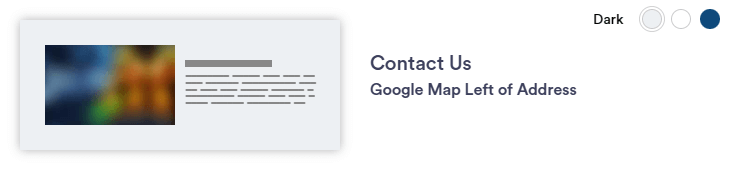
Contact 4
Google Map Left of Address
Contact 4
Live Preview >
Required
  • Background color
  • Text Justification (left)
  • Google map (left)
  • Column Title
Optional
  • Contact Info (address, phone, fax, and email)
  • Disclaimer
Section Capabilities
  • Good practice: place section at end of page (before the footer)
  • Google map connected to Firm's google business profile
  • Data pulled from MPM
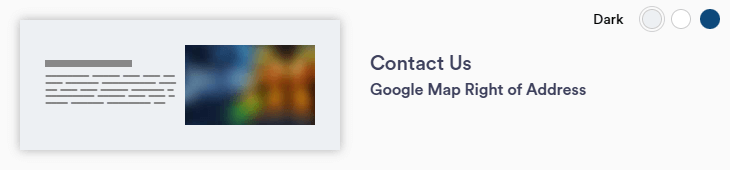
Contact 5
Google Map Right of Address
Contact 5
Live Preview >
Required
  • Background color
  • Text Justification (left)
  • Google map (right)
  • Column Title
Optional
  • Contact Info (address, phone, fax, and email)
  • Disclaimer
Section Capabilities
  • Good practice: place section at end of page (before the footer)
  • Google map connected to Firm's google business profile
  • Data pulled from MPM
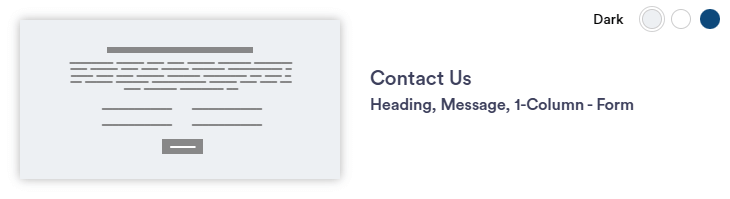
Contact 6
Heading, Message, 1-Column - Form
Contact 6
Live Preview >
Required
  • Background color
  • Text Justification (left)
  • Disclaimer
Optional
  • Title and/or paragraph
Section Capabilities
  • Use this section on the main "Contact" page
  • Icon/button color changes with background color

Legend

Non-PCG Colors Color Preview
Dark Background Grey
Light Background White
Primary Background Blue: #0e497b
Accent Yellow: #ffb81c
PCG Colors Color Preview
Dark Background Grey
Light Background White
Primary Background PCG Blue
Accent PCG Gold: #e1c88f


Headline Options Preview
Headline 2 (H2)
Headline 3 (H3)
Headline 4 (H4)
Headline 5 (H5)
Headline 6 (H6)